Change or cancel your plan
How to switch billing period, move between Pro and Line Breakers, cancel, and find receipts in Studio Billing.
Studio. Pro and Line Breakers.
To open Billing, select Settings in the Studio sidebar, then the Billing tab. Billing is only in your personal scope; if a squad is selected, switch to Personal. On Platform, Manage or cancel subscription on breakingthelines.com/pricing and Open billing on breakingthelines.com/memberships open the same tab.
The Your plan card shows the plan, its status, the price, the billing cycle and the Next renewal date.
Switch between monthly and annual
- Above the plan cards, choose the other period, Monthly or Annual.
- On your plan's card, select Switch to annual or Switch to monthly.
- Select Confirm switch.
Move between Pro and Line Breakers
- On the Line Breakers card, select Upgrade to Line Breakers. On the Pro card, select Downgrade to Pro.
- Select Confirm switch. "Your plan has been updated" confirms the change.
Cancel
To stop a creator's tier, see end a membership.
- On the Your plan card, select Cancel subscription. Downgrade to Free on the Free card opens the same dialog.
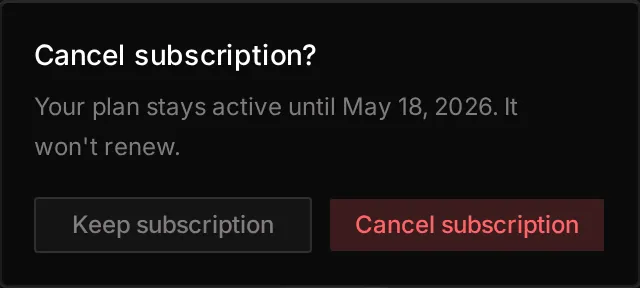
- The dialog shows the date the plan stays active until, and says it will not renew. During a trial, it shows the date the trial ends and says you will not be charged.
- Select Cancel subscription to confirm, or Keep subscription to keep the plan.
"Subscription cancelled" confirms. The status changes to Cancelled and the date label to Access ends. The plan stays until that date. There are no refunds for the rest of the period. To keep the plan after all, select Renew in Stripe.
When the plan ends, the account moves to Free. Published pieces stay published and drafts are kept. Free limits apply from then on, including how many pieces can be published at one time. See plans.
Card details, receipts and failed payments
- Manage in Stripe opens the Stripe billing portal, where you change the card.
- Billing history lists each payment with its date, amount, invoice and status. View receipts in Stripe opens the receipts.
- If a payment fails, the status reads Payment issue subscription. Update the card with Manage in Stripe.
- If you're not on a paid plan but have subscribed before, Billing shows Saved cards. Manage in Stripe opens the Stripe billing portal, where you can remove a card or see past receipts. A card saved through Stripe Link is also kept in your Link account at link.com.
Was this page helpful?